
Automating routine operations in a Windows environment involves creating repeatable sequences that perform tasks without continuous manual input. These sequences often combine triggers, conditional logic, and actions to handle file movement, scheduled processing, notifications, or administrative chores. In practical settings this can mean configuring time-based schedules, responding to system events, or running scripted routines that standardize procedures across desktop and server systems. Automation design typically separates the triggering mechanism from the operational logic so each element can be tested and updated independently.
Typical components include a trigger (time, event, or file change), one or more actions (script execution, file copy, service restart), and logging or error-handling steps that record outcomes. Implementations may use graphical tools that generate executable flows or rely on scripts and command-line utilities for greater control. Environments vary from single-user desktops to enterprise servers; considerations such as permissions, auditing, and maintainability commonly influence which tools and patterns are chosen.
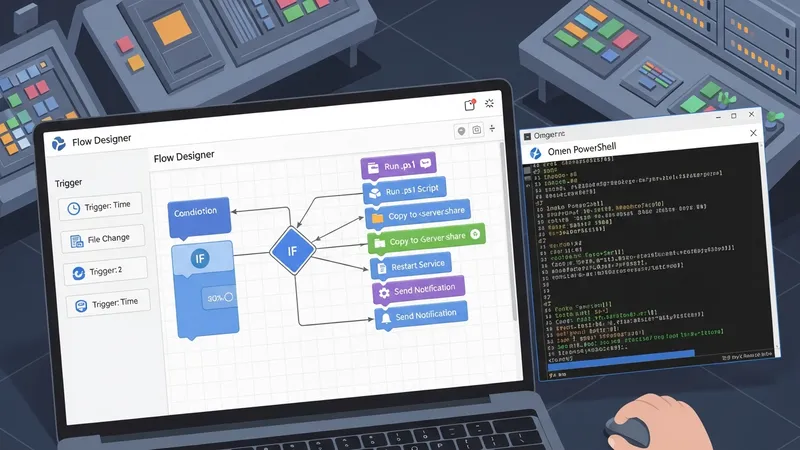
Graphical automation tools and script-based methods represent two commonly used patterns. Graphical tools often make it easier to build simple flows without deep scripting knowledge and may include built-in connectors. Script-based methods, particularly using PowerShell, typically offer finer-grained control, easier integration with version control, and more transparent error handling. In many environments teams combine both: use graphical flows for high-level coordination and scripts for specialized processing steps that require precise control or repeatability.
Triggers and scheduling patterns vary by use case and can include fixed intervals, calendar-based triggers, or event-driven triggers that respond to system logs or file system changes. Event-driven automation may rely on Windows Event Log entries or file system watchers; time-based scheduling commonly uses Task Scheduler. Designing reliable triggers often involves adding small validation steps—such as checking file integrity or system load—so actions execute only under intended conditions and avoid cascading failures.
File management and data processing are frequent targets for automation. Tools like Robocopy and PowerShell cmdlets may be used to perform synchronized copies, incremental transfers, and data validation. Automation flows typically incorporate logging of file operations, size and checksum checks where appropriate, and retry logic to handle transient network or I/O errors. Where multiple applications share data, explicit formatting and staging steps can reduce downstream parsing errors.
Security and permissions are central to operational stability. Automated tasks may run under service accounts, managed identities, or user contexts; each choice carries trade-offs for access scope and auditability. Credential handling practices such as using secure credential stores or built-in vault features can reduce exposure. Auditing and change tracking—through signed scripts, role separation, and logging—often form part of governance to ensure automation runs as intended and can be reviewed if issues arise.
In summary, automating routine Windows operations typically involves selecting triggers, composing reliable actions, and applying logging and security controls to support maintainability and auditability. Solutions may combine Task Scheduler, scripted routines, and desktop flow tools to address different needs, with trade-offs between ease of authoring and depth of control. The next sections examine practical components and considerations in more detail.
Automation workflows for Windows often fall into categories such as scheduled maintenance, event-driven responses, user-interaction automation, and batch data processing. Scheduled flows typically run at set intervals for tasks like backups or cleanup. Event-driven flows react to system or application events, for example when a service logs a specific event or a file appears in a folder. User-interaction automation mimics desktop activity to integrate applications that lack APIs. Batch processing workflows handle bulk file or data transformations and often run during off-peak hours to reduce contention with interactive users.
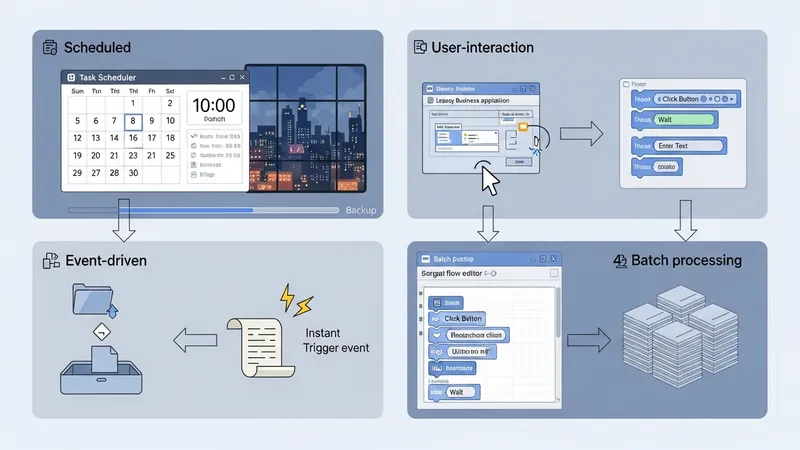
Each method commonly leverages specific tools introduced earlier. Task Scheduler is frequently used for time-based schedules and can host scripts or executables. PowerShell is often chosen for batch processing and administrative tasks because it can access system APIs, parse structured data, and integrate with other Windows management interfaces. Graphical flow tools may be used where interactions with user-interface elements or cross-application steps are needed, recognizing these can be more sensitive to UI changes and may require additional monitoring.
When selecting an approach, teams often weigh maintainability, observability, and portability. Scripted approaches may be easier to store in version control and review through code diffs; graphical flows can be faster to compose for simple sequences but may require separate export/versioning strategies. Considerations such as the frequency of changes, the need for parameterization, and the expected lifecycle of the automation typically influence whether a scripted or GUI-driven pattern is applied.
Insider considerations include designing idempotent actions where possible so repeating a flow has predictable results, and partitioning workflows into discrete steps that can be retried independently. Logging formats that include timestamps, unique run identifiers, and error details aid troubleshooting. Testing automation in a staging or isolated environment often reveals environment-specific dependencies such as missing modules or permission boundaries before production deployment.
Designing automation sequences normally begins with mapping the business or operational goal to a series of discrete steps: trigger, validation, action(s), and post-action verification. Orchestration refers to coordinating these steps so they execute in the correct order and respond to outcomes. Common orchestration patterns include linear sequences for simple workflows, conditional branching for variant processing, and parallel execution when independent steps can run concurrently. Using modular components—small, single-purpose scripts or actions—can simplify testing and reuse.
Error handling and recovery are important design elements. Typical strategies may include capturing and classifying exceptions, retry loops with backoff for transient conditions, and compensating actions when partial failure occurs. Recording comprehensive logs and exit codes helps operators determine whether an execution completed successfully or requires manual intervention. In environments where reliability is critical, automation sequences often include health checks before and after key steps to verify system readiness and result consistency.
Parameterization and configuration separation help make flows adaptable. Passing parameters rather than hard-coding paths, server names, or thresholds allows the same sequence to operate across environments. Storing configuration securely and centrally, and referencing it at runtime, often reduces errors caused by inconsistent local settings. Additionally, designing flows to emit structured logs (JSON, CSV) facilitates downstream analysis and integration with monitoring systems.
Testing and validation practices typically include unit testing individual scripts, integration testing of full sequences, and periodic dry runs in a controlled environment. Where feasible, developers maintain test harnesses or simulated inputs to exercise error branches. Version control systems and change logs support traceability so changes to automation can be audited and rolled back if regressions appear. These practices tend to reduce operational surprises when workflows are promoted to production environments.
Automation often needs to integrate with other systems such as databases, web APIs, file shares, and identity services. PowerShell and command-line utilities commonly provide connectors and modules for these integrations, while graphical flow tools may offer prebuilt connectors. Network considerations—such as firewall rules, service endpoints, and VPN access—can affect the ability of automation to reach required resources. Planning for retries, timeouts, and error codes from external systems typically improves resilience when integrations experience transient failures.
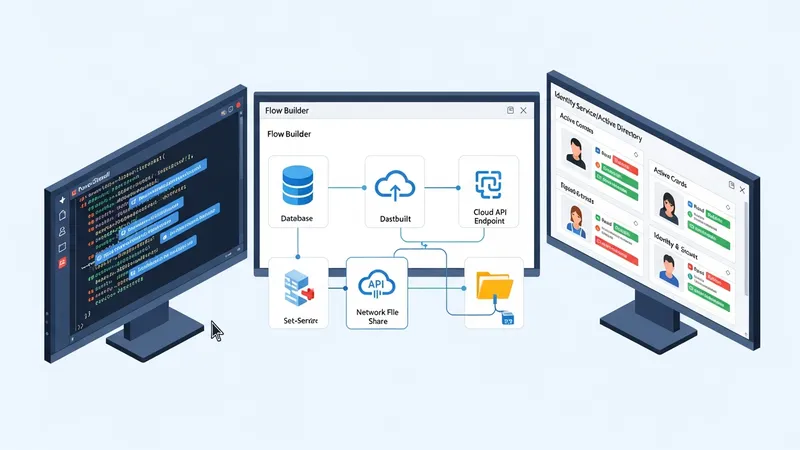
Administrative considerations include account management, permission scoping, and credential handling. Service or managed accounts used by automation should follow the principle of least privilege and be restricted to the minimal resources needed. Where automations require elevated privileges, containment strategies like running specific actions under separate contexts or using just-in-time elevation mechanisms can limit exposure. Centralized credential stores or secret management systems are often used to avoid embedding credentials in scripts or configuration files.
Scale and distribution patterns vary by organization. Small deployments may run flows on a single workstation or server, while larger environments may use centralized orchestration platforms or distribute tasks across multiple agents. Remote execution tools (for example WinRM-based management, scheduled task distribution, or agent-based systems) can help automate across many endpoints. Administrators often monitor resource utilization and schedule heavy workloads during maintenance windows to reduce impact on interactive users.
Deployment and change control commonly rely on packaging scripts, using version control tags, and maintaining deployment pipelines that validate integrity and dependencies before production rollout. Documentation that captures operational runbooks, expected inputs and outputs, and rollback procedures assists administrators in diagnosing failures. Regular reviews of automation coverage and periodic audits of which flows remain necessary also help manage technical debt introduced by long-running, unattended automations.
Effective monitoring typically combines native Windows logs, application-level logs, and central observability tools. Task Scheduler history and Windows Event Logs provide baseline information about scheduled executions and system events. Automation flows often produce their own structured logs with run identifiers and status codes, which can be ingested into log analysis tools or SIEM systems for correlation. Alerting thresholds should be conservative and focused on actionable failures to reduce alert fatigue among operators.
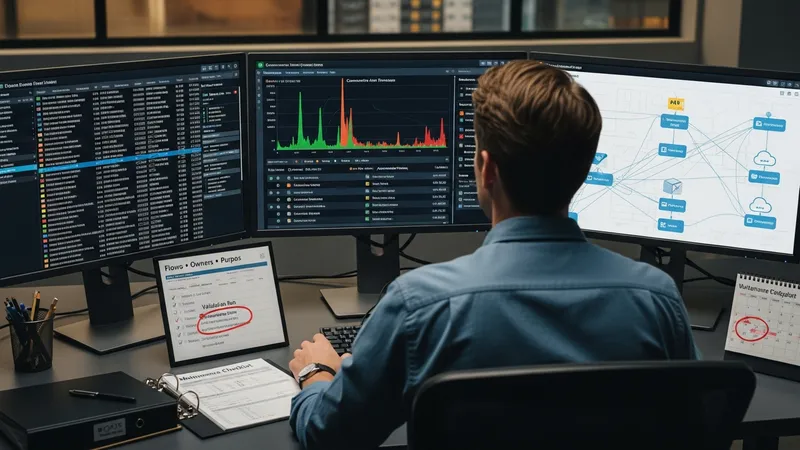
Maintenance practices include periodic reviews, dependency checks, and patch management for the hosts running automation. Scripts and flows may depend on libraries or external endpoints; tracking these dependencies and testing after operating system updates reduces the chance of unexpected breakage. Documentation that lists current flows, their owners, and purpose helps teams retire unused automations and prioritize updates. Scheduled validation runs can detect drift in external inputs or changes in numbering and file formats that would otherwise cause silent failures.
Governance covers policies for who can create, modify, and approve automation. Role separation—distinct roles for development, review, and operational promotion—tends to improve oversight. Requiring code reviews or change approvals for script changes, and storing artifacts in version control with clear commit messages, supports accountability. Additionally, retention policies for logs and audit trails should align with organizational compliance needs while balancing storage and privacy considerations.
Incident response for automation-related outages benefits from runbooks that specify how to collect diagnostic data, isolate faulty steps, and roll back recent changes. Post-incident reviews often identify opportunities to harden flows with additional validation, retries, or alerts. Over time, combining monitoring, disciplined maintenance, and governance practices can increase the predictability and transparency of automated operations in Windows environments and reduce manual oversight requirements.